Day 6 : File Permissions and Access Control Lists
This is #90DaysofDevops challenge under the guidance of Shubham Londhe sir.
Day 6 TASK
check this for task:
90DaysOfDevOps/tasks.md at master · LondheShubham153/90DaysOfDevOps
This repository is a Challenge for the DevOps Community to get stronger in DevOps. This challenge starts on the 1st…
1. Change the user permissions of the file and note the changes after ls -ltr
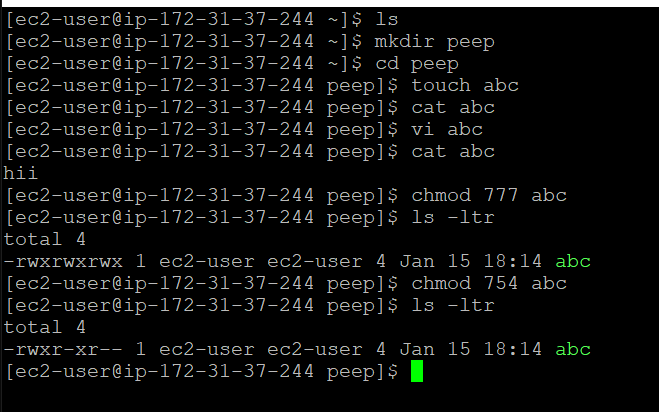
Here you can see the file abc has permission 777 that means it has all the read, write and execute permissions.
And below I have changed the permission to 754 that explaination has been given in the second point.
2. Write an article about File Permissions based on your understanding from the notes.
In Linux, file permissions determine who can read, write, and execute a file. Each file and directory has a set of permissions that specify which users or groups can perform certain actions. These permissions are represented by a combination of letters and symbols, such as -rwxrw-r — , that indicate the owner, group, and others’ permissions for a file or directory. The three types of permissions are:
Read (r): Allows a user to view the contents of a file or list the contents of a directory
Write (w): Allows a user to modify or delete a file or add, remove, or rename files in a directory
Execute (x): Allows a user to run a file as a program or script
Each file and directory also has an owner, which is the user who created it, and a group, which is a set of users with similar permissions. The permissions can be set or changed using the chmod command, and the ownership can be set or changed using the chown command.
Numeric permission in Linux
In Linux, file permissions are represented by a set of three digits, referred to as the “numeric permission.” These digits represent the permissions for the owner of the file, the group owner of the file, and all other users, respectively.
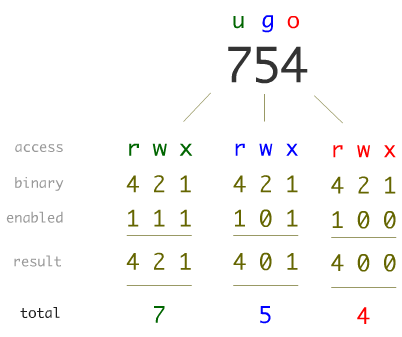
Each digit is a combination of the values 4 (read), 2 (write), and 1 (execute), with a value of 7 indicating full permissions (read, write, and execute), a value of 6 indicating read and write permissions, and so on.
For example, a numeric permission of 755 would give the owner full permissions, the group owner and all other users read and execute permissions.
3. Read about ACL and try out the commands getfacl and setfacl
getfacl and setfacl are command line utilities in Linux that are used to view and modify the access control lists (ACLs) of files and directories.
getfacl command is used to display the access control list (ACL) of a file or directory. It shows the permissions for the owner, group owner, and all other users, as well as any additional users or groups that have been granted specific permissions.
setfacl command is used to set or modify the access control list (ACL) of a file or directory. This command is used to add, modify, or delete specific permissions for a user or group. The setfacl command can also be used to set the default ACL for a directory, which will be applied to all new files and directories created within that directory.
For example, the command getfacl /home/user/example.txt will display the permissions and acls of the file /home/user/example.txt and setfacl -m u:user1:rwx /home/user/example.txt will give user1 read, write and execute permissions on the file /home/user/example.txt.
Please, feel free to drop any questions in the comments below. I would be happy to answer them.
If this post was helpful, please do follow and click the clap 👏 button below to show your support 😄
_Thank you for reading💚

